Upload Files: Upload your files with FTP
Uploading with FTP
The following tutorial is a step-by-step guide on how to use FTP with Windows Explorer to upload plastic cards' contents to our server.
You must obtain a username and password from us. Please contact us to obtain your username and password.
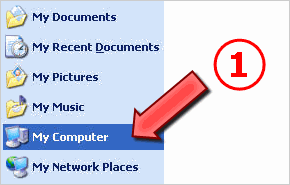
1. Open 'My Computer' from your Windows 'start' menu or desktop. You can also open any folder on your desktop that you have created.
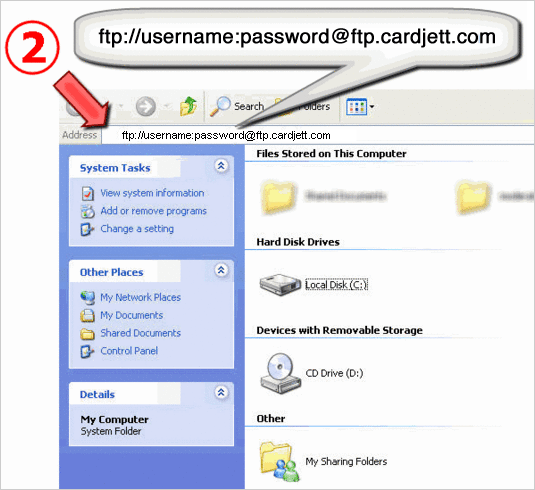
2. Paste the following URL into the 'Address' field of the Explorer window:
ftp://username:password@ftp.cardjett.com
Note: Make sure you replace 'username' with YOUR cardjett.com username, and 'password' with YOUR cardjett.com password. (Click here to obtain your username and password).
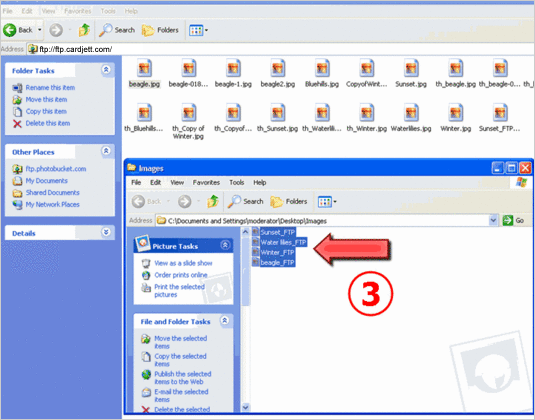
3. Open up another window and locate an image (or images) on your computer that you would like to upload. Simply 'drag and drop' this file (or files) into the FTP window.
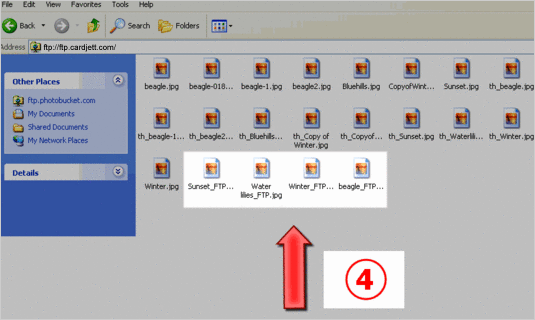
4. Your files should now be visible in the FTP window. This also mean you have successfully uploaded your content to our server.
5. Alternatively, you can use any FTP program to upload your content to our server.
The FTP settings for use with other FTP programs are:
host address: ftp.cardjett.com
port: 21
username: your username
password: your password
directory: blank or default
You may need to use 'Passive Mode' if you are using a firewall. |






 CardJett Home